
Welcome to Dronework
Everything you need to get your first missions, fly, deliver your data and get paid.
Contents
Getting started
How Dronework works
Dronework connects companies that need aerial data with certified drone pilots. You never chase clients: missions are assigned to you based on your equipment, your licence and your service area.
Before your first mission, four steps: create your account, complete your profile, verify your identity and install the app.
Create your account
On the sign-up page, choose “I’m a pilot”, then enter your email and a password (8 characters minimum).
A welcome email is sent from hi@dronework.app: click “Confirm my email” to activate your account.

Complete your pilot profile
Six steps, about 5 minutes. What you enter is kept if you leave the page.
- Identity — a clear photo of your face, name, country, city and phone (WhatsApp preferred). Your company name is optional.
- Drones — only add aircraft you own or can source quickly: your equipment decides which missions you are offered.
- Sensors — payloads (Zenmuse P1, L2, H30T…) or built-in camera. Model not listed? Type its name, then “Add”.
- Licence — number and photo of your remote pilot licence, checked by our team.
- Experience — years of experience, number of flights and links to your work.
- Area — the cities and countries where you can fly. Nearby missions are offered to you first.

Verify your identity
Required to receive missions. From your dashboard, send your ID (front and back, or the passport photo page) and a selfie holding it while making the requested gesture. Our team checks it within 48 h.
Your dashboard shows the status of each check: email, identity and licence.

Install the app
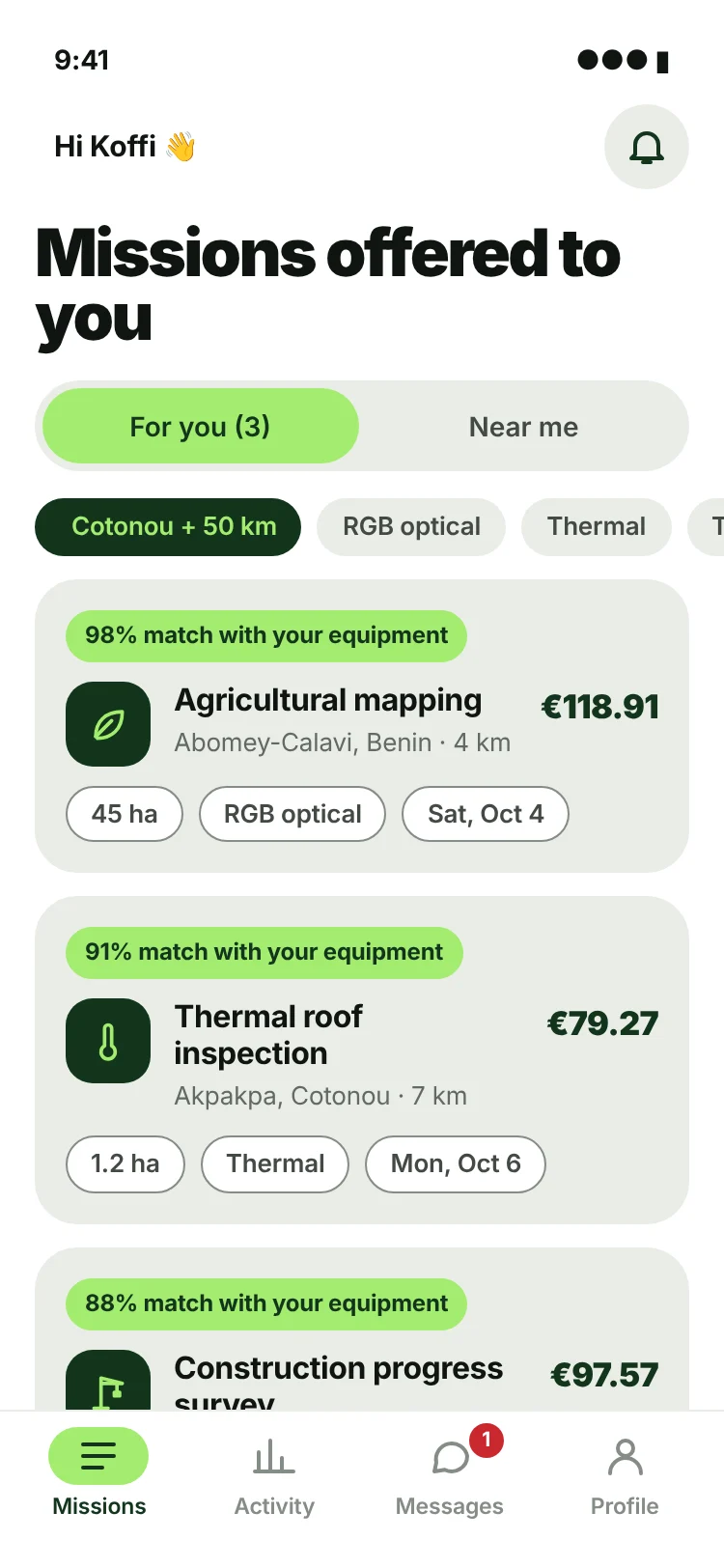
Missions are offered first to pilots who have the Dronework app (iPhone and Android). Install it, log in with the same account and turn on notifications: you are alerted as soon as a mission is offered to you.
Missions
How you get work
The company describes its need, the Dronework team approves the request, then the mission is assigned to the best-placed qualified pilot: equipment, licence, distance and availability.
In “Missions available in your country”, tap “I’m interested” to put yourself forward: the team takes it into account when assigning.
The client’s name is never shared with you: for any question about a mission, you talk to the Dronework team.

Accept a mission
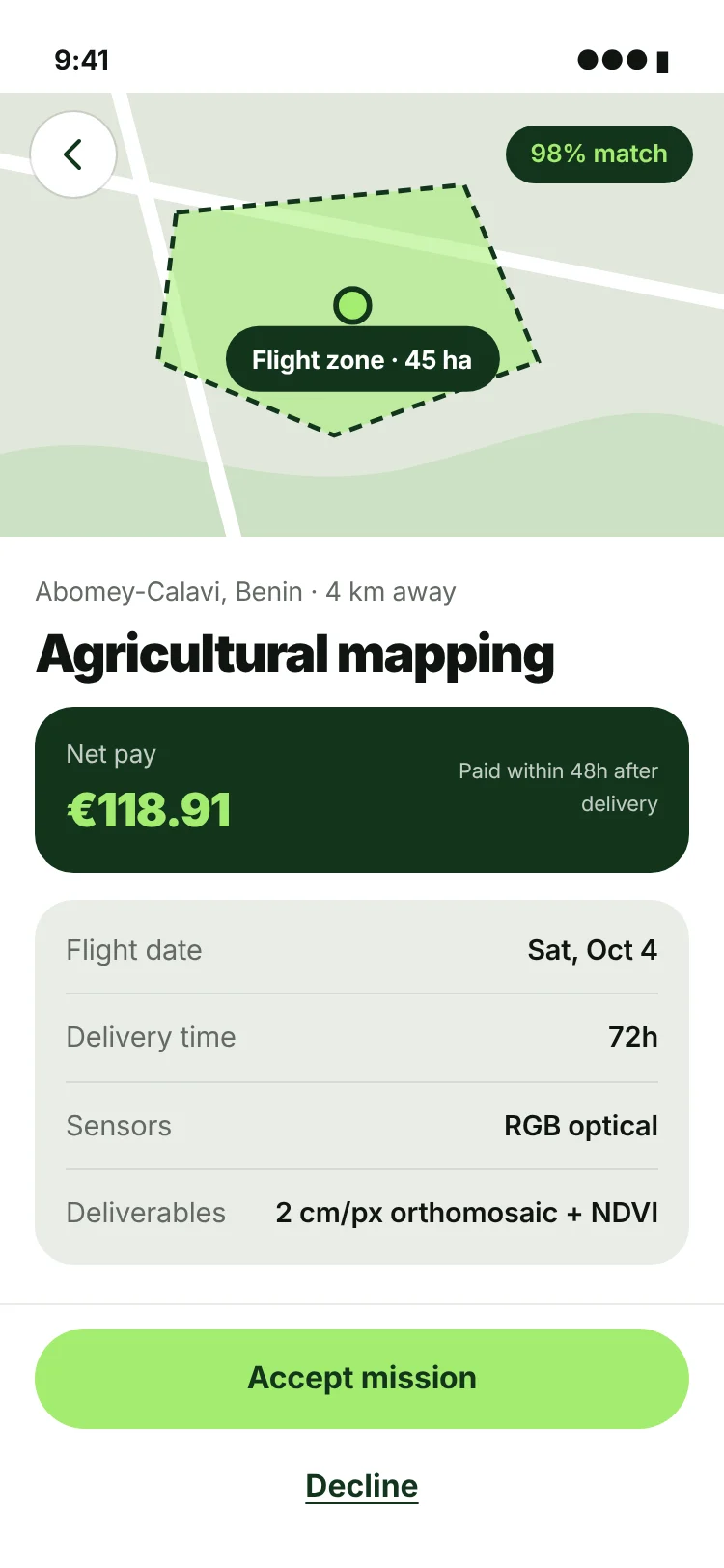
When a mission is offered to you, you get a notification and an email. Open it: area, specifications, required sensors, documents and your payout.
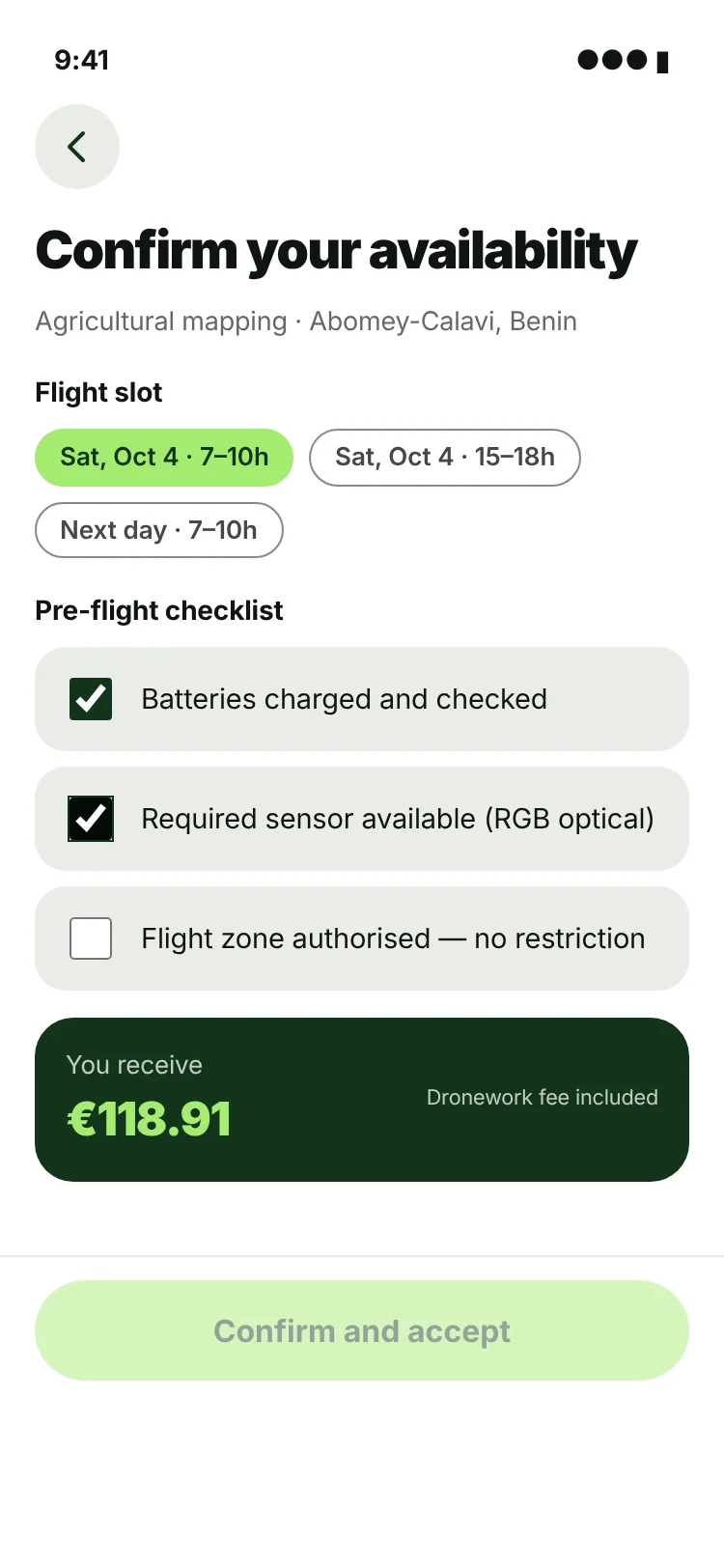
The time left to answer is shown on the mission. After that, it is offered to another pilot. By accepting, you sign the mission contract electronically. If you decline, you can give the reason.

Mission statuses
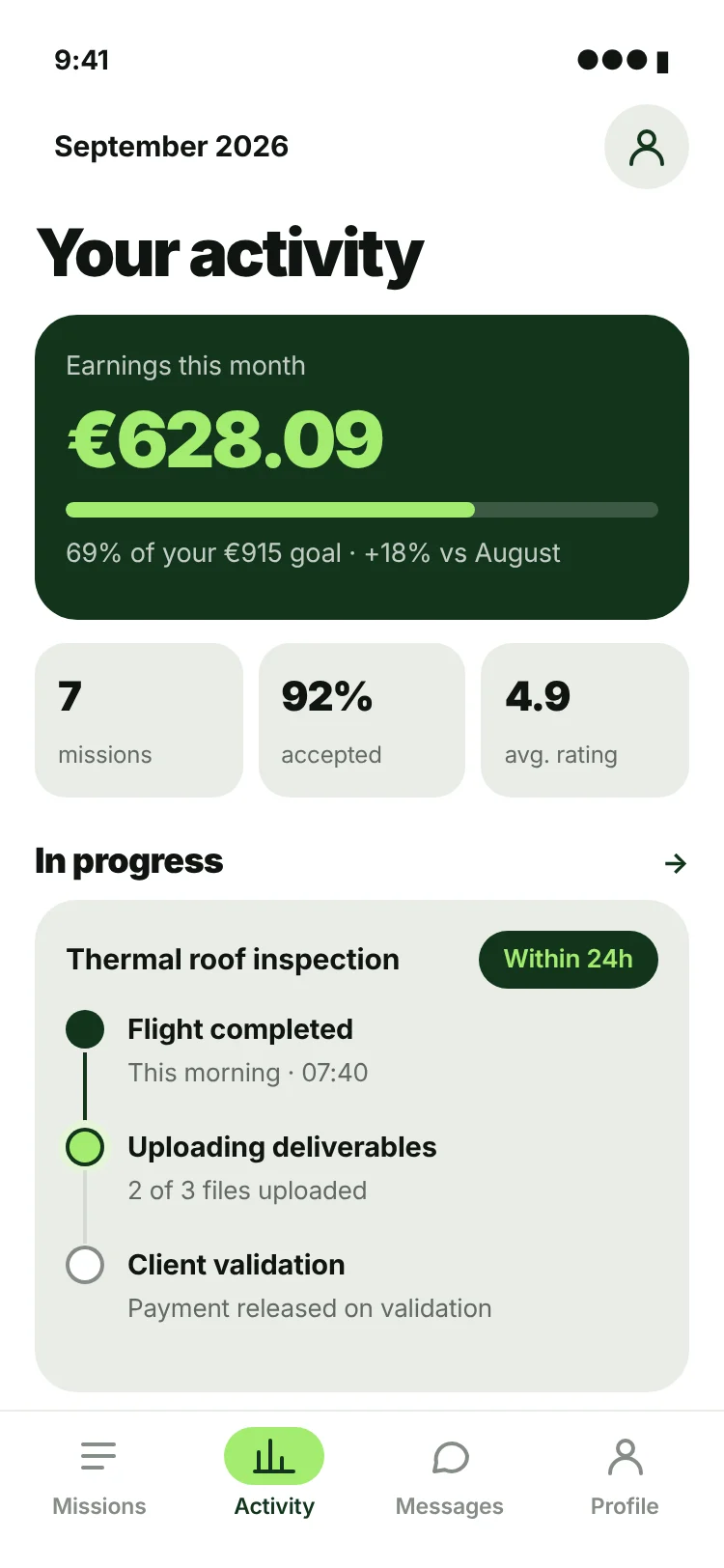
- To accept the mission is offered to you, the countdown is running.
- Flight date to set mission accepted, choose the flight date.
- Flight on… date saved. You get a reminder 3 days before and the day before.
- Data being uploaded your files are arriving on our storage.
- Data being checked the team checks the data before delivery.
- Data delivered the client has the data, your invoice is generated.
- Paid the payment has been sent to your account.
Flying
Set the flight date
Open the mission and choose the flight date, with a time slot if you wish. The Dronework team arranges site access with the client.

Prepare the flight
- Area: download the mission KML and import it into your flight app (DJI Pilot 2, DJI Fly, Google Earth…).
- Specifications: follow the requested sensor, precision (cm/pixel) and overlap.
- Equipment: charged batteries, empty memory cards, weather checked the day before.
Uploading
Upload your data
After the flight, open the mission and tap “Choose files”, or drop them in the upload area. Raw images, orthomosaic, point cloud, .zip folder: files of several GB are accepted. Keep the page open while uploading.

Finish the upload
When all your files are received, tap “Everything is sent”. The team checks coverage and data quality before delivering to the client.
If the upload stops
Connection lost? Pick the same file again: the upload resumes where it stopped. You can also pause an upload and resume it.
Getting paid
Your payout account
In “Payments, contracts and invoices”, save the account that will receive your payments: local payment (MTN MoMo, Moov Money, Orange Money, Wave…) or bank transfer.
Check the number and the account holder’s name: to protect you against fraud, this account cannot be changed afterwards. To change it, write to hi@dronework.app.

When you get paid
A contract is created for every accepted mission. When your data is approved, an invoice is generated in your name and the payment is sent to your account. Contracts and invoices stay available in your dashboard.
Premium subscription
Optional: it gives you priority when missions in your area are assigned. Monthly or yearly, no commitment. Pay, then enter the transaction reference from your dashboard: the team activates the subscription, usually within 24 h.

A question?
The quality and punctuality of your deliveries build your reputation on Dronework. Unsure about a mission or your equipment? Write to us before accepting: hi@dronework.app